How to reset all participants passwords
As a Council Admin, you can reset all participant's (PNMs) passwords at once giving them the same password or using a unique field they already inputted like (student id). This can be helpful if you are getting a lot of participants saying they do not remember their passwords. Below you will find the steps. Note, you need to pick something that meets the password minimum requirements - 8 characters, a special character, an uppercase and a lowercase letter and a number.
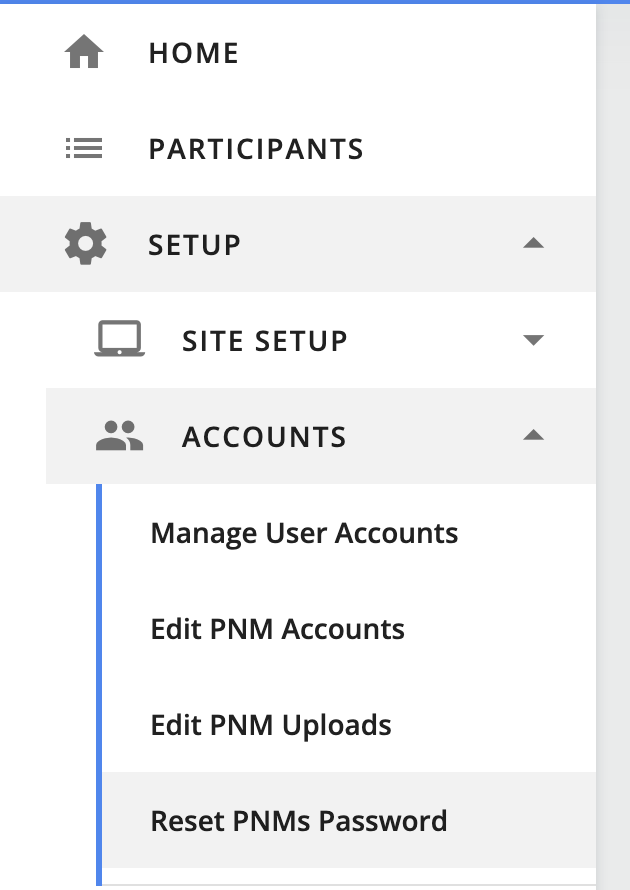
1. Click on "Setup"
2. Click "Accounts"
3. Click "Reset PNM Password"
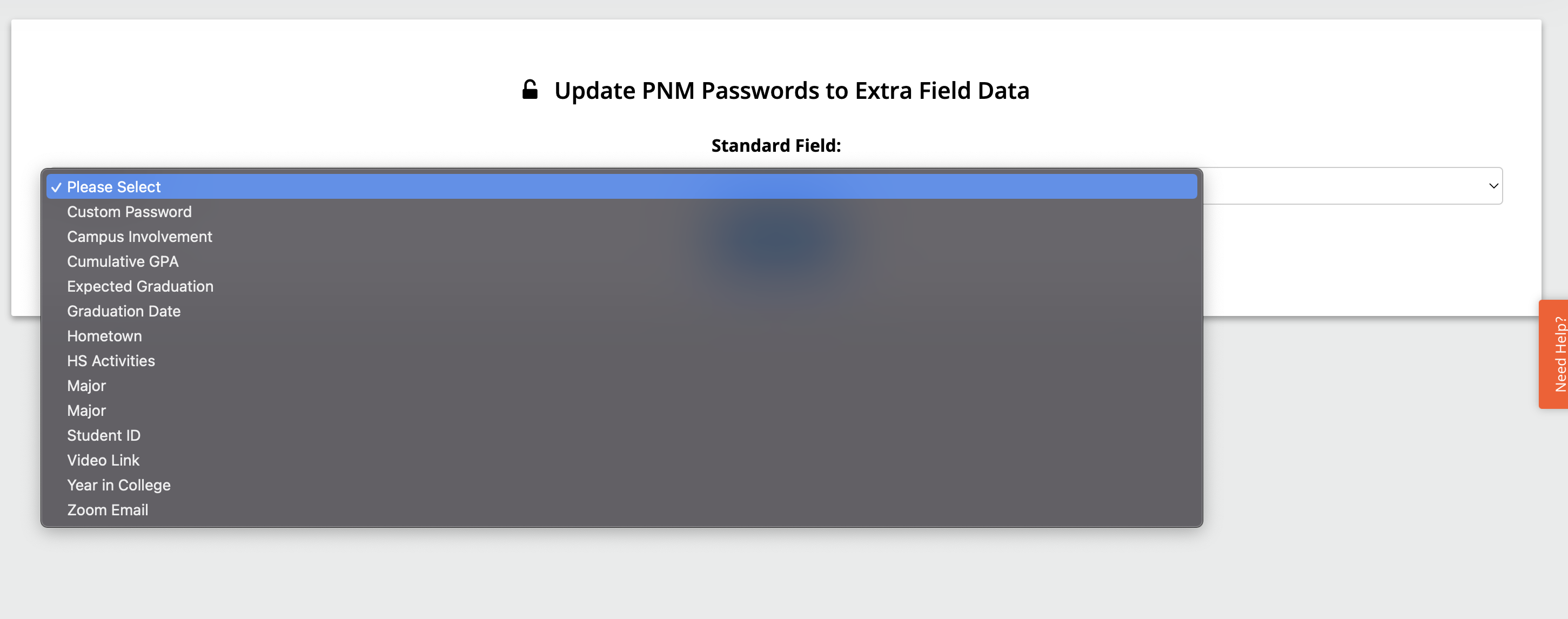
4. Select the field you want to become all participants passwords. If you want to set a custom password, select "Custom password"
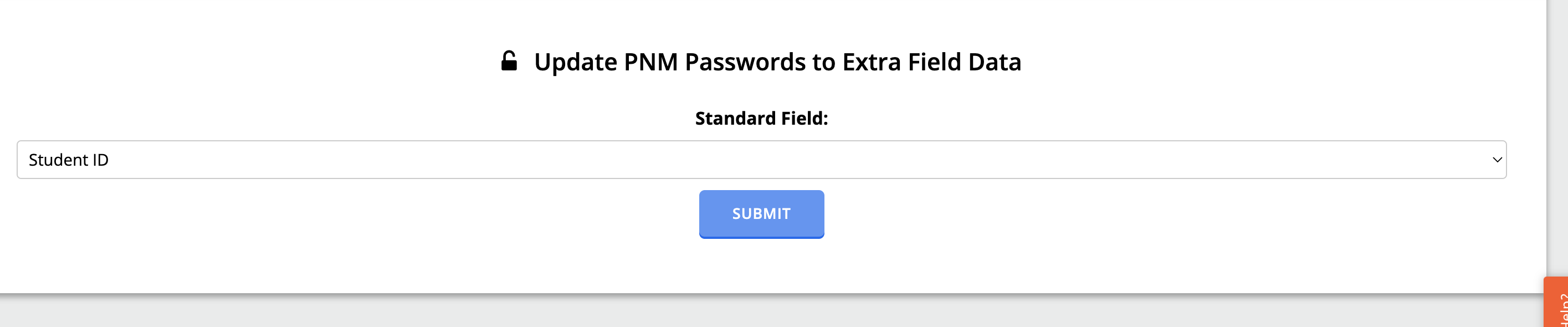
5. Once you have selected the field and inputted any additional required information (if applicable) then click "Submit."
Related Articles
CampusDirector - How to reset all Participant/PNM passwords
As a Council Admin, you can reset all Participant/PNM's passwords at once, giving them the same password or using a unique field they already inputted (like their student ID). This can be helpful if you are getting a lot of participants/PNMs saying ...CampusDirector - How to reset all Recruitment Counselor passwords
Are your Recruitment Counselors (RCs) having issues accessing CampusDirector, or have they all forgotten their passwords? You can easily change all their passwords to a single password, allowing them to easily log in and change it to something new. ...CampusDirector - Participants can't enter priorities
If participants cannot enter priorities, a number of issues could occur. 1. Editing is not turned on for participants. To check this, go to "Setup" > "Site Setup" > "Configuration" and scroll down to the 5th box entitled "Site Account Options." If ...CampusDirector - How to change a participant's password
As a Council Admin, you can reset a Participant/PNM’s password for them. Changing a Participant/PNM's Password: 1. Click on "Setup" 2. Click "Accounts" 3. Click "Edit PNM Accounts." 4. Search for the participant whose password you want to reset. 5. ...CampusDirector - How to change a participant's password
As a Council Admin, you can reset a Participant/PNM’s password for them. Changing a Participant/PNM's Password: 1. Click on "Setup" 2. Click "Accounts" 3. Click "Edit PNM Accounts." 4. Search for the participant whose password you want to reset. 5. ...